iPhone / MacBook Screen Mirroring:
- Make sure your iPhone/MacBook and the Unicast TV device are on the same network.
- TikTok is a classic app — with iPhone Mirroring, you can enjoy scrolling through your phone on the big TV screen.
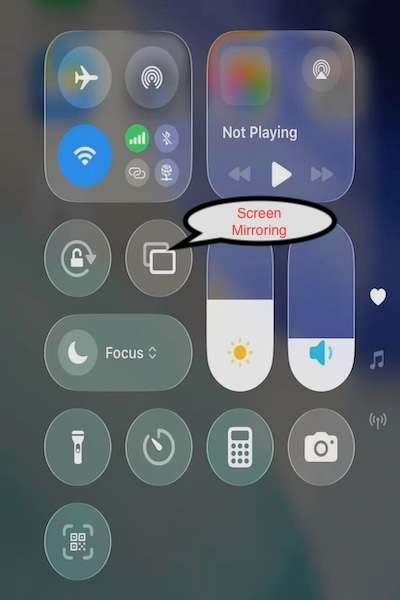
iPhone 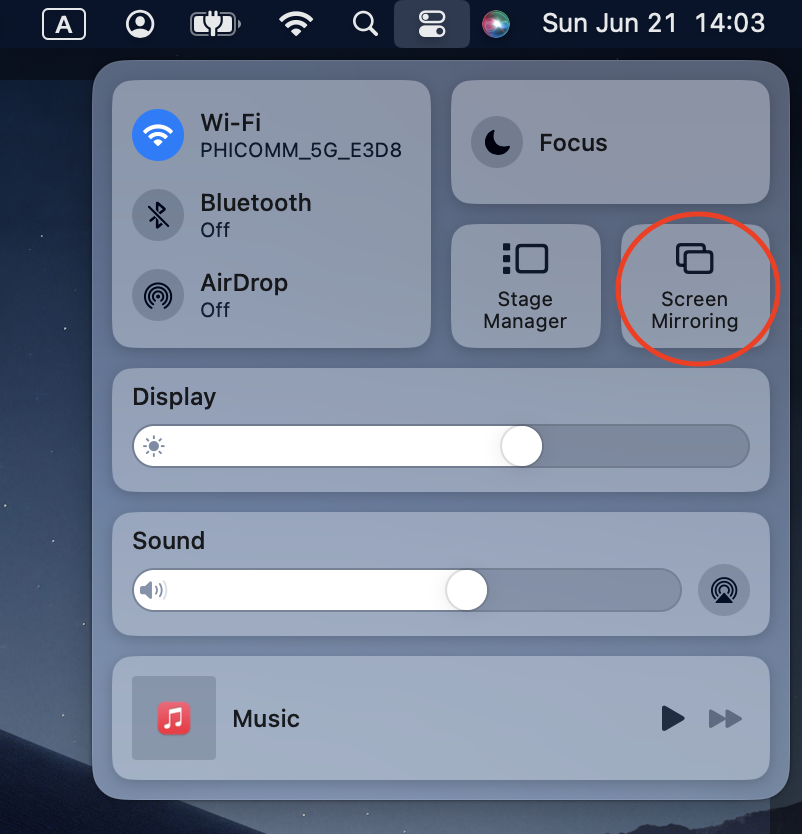
Macbook
Airplay Audio/Video Casting:
- Compatible with, but not limited to, Apple Music、Spotify、YouTube Music and Youtube.
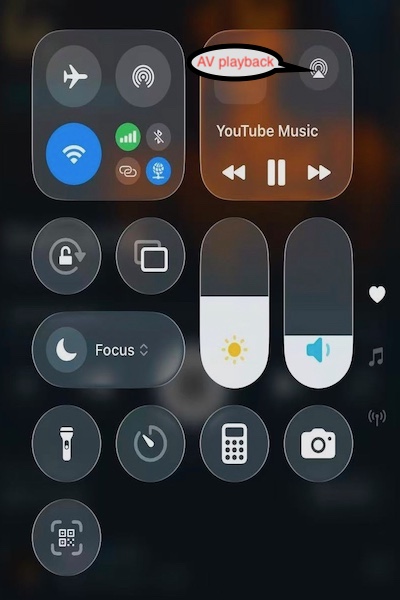
Youtube Music、Spotify、Apple Music etc. 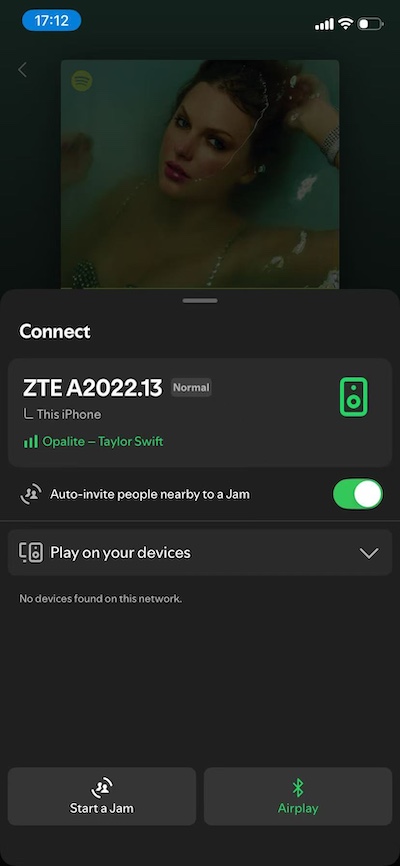
Spotify etc.
Windows/Linux PC Screen Mirroring:
- Achieved via Edge/Chrome extensions — no additional local software required. Open www.basicgo.net in your browser, click on “Unicast Quick Start Guide” to reach this page, then visit the extension store to install the extension:
- Microsoft Edge Add-ons: Click to install Unicast Browser Extension V1.3.0
- Chrome extension: Install from Chrome Web Store V1.3.0
- Auto-discovery, supports one-to-many casting.
Multi-Room Precise Time-Synced Music Playback:
- Install Unicast on Android devices in multiple rooms;
- Select one device to enable the Multi-room Audio Control Center;
- Cast audio via Airplay or Dlna to the Control Center, which will automatically sync playback to devices in other rooms.
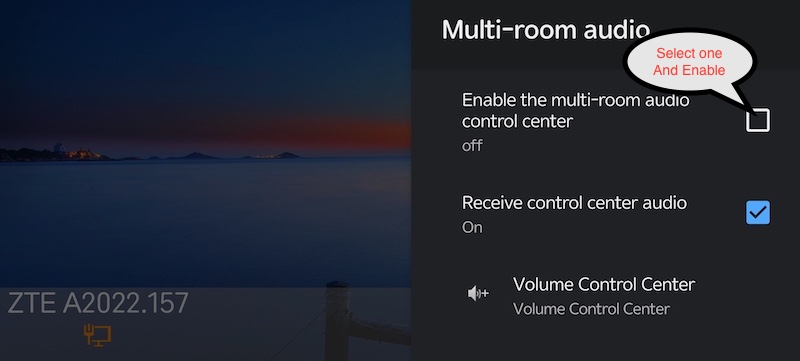
System Settings => Multi-room audio
USB/SD Card Player:
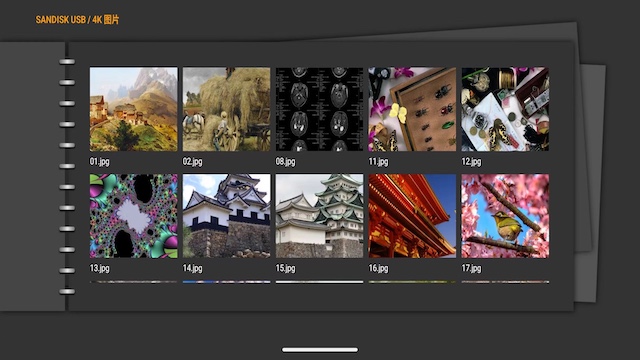
- Audio & Image Playback,Surpports lossless formats including APE,FLAC and WAV with CUE sheet track selection; can simultaneously run a photo slideshow with background music.
- HD Movie Playback;
- 3D Movie Playback;
- Blu-ray BDMV/ISO And HDR Playback.
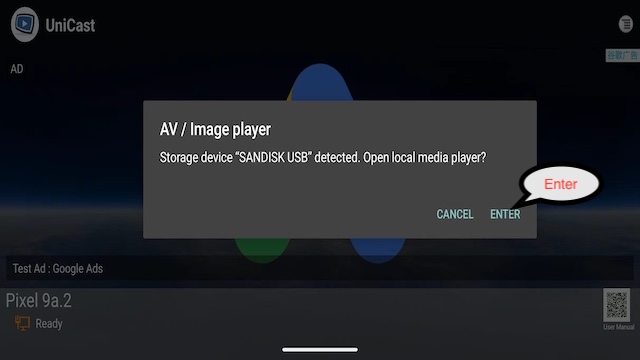
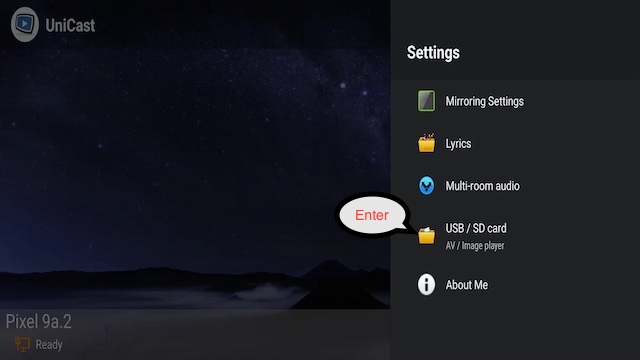
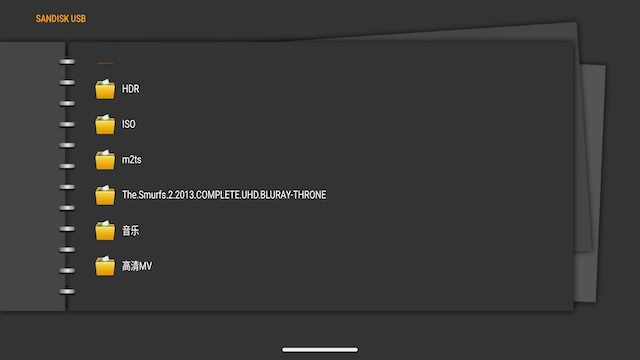
-
USB Storage Device Authorization Guide (SAF)
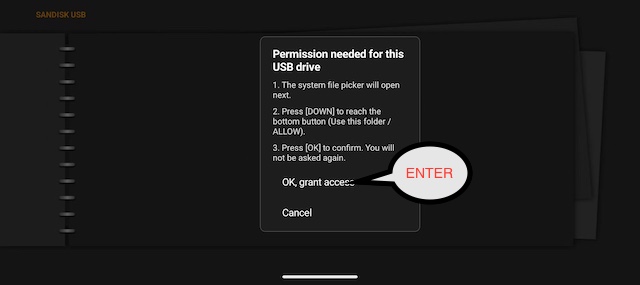
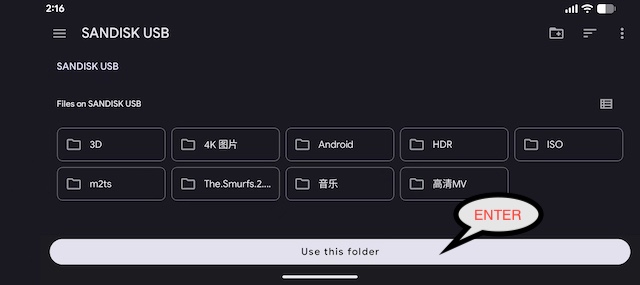
To read and play video and image files stored on your connected USB flash drive or external hard drive, our app requires storage access authorization in compliance with Android TV security and privacy standards.
Please follow these simple steps using your TV remote control to complete the one-time authorization:
Step 1: Trigger the Authorization Prompt
Insert your USB storage device into your Android TV or TV box and Enter the file browser menu through USB Entry.
FAQ
How do I access the Unicast Settings menu?
- Press the Options or Menu key on your TV remote control.
- You can access the settings menu on Chromecast TV and Google TV by long-pressing the OK button on the remote control.
My display is in portrait orientation — how do I mirror my screen?
- Go to Settings -> Mirroring Settings -> Mirroring Angle -> select the appropriate rotation angle.
How do I set the mirroring resolution?
- Go to Settings -> Mirroring Settings -> Resolution -> supports 720p up to 4K.
What if screen mirroring shows a black screen or freezes on the first frame?
- Go to Settings -> Mirroring Settings -> Resolution -> select an appropriate resolution.
- Go to Settings -> Mirroring Settings -> Decoder -> select Software Decoder.
How do I edit and cast photos from an Android phone?
- Please install Unicast Gallery